


Pinterest has always been about collecting ideas.
But instead of saving images separately, you can now combine them into one visual layout using collages.
This feature makes it easier to plan outfits, design rooms, build mood boards, or compare products in a single place.
And considering that Pinterest reports over 600 million monthly active users worldwide according to its Investor Relations reports, visual formats like collages help content stand out in a crowded feed.
If you want to create a collage on Pinterest or make one directly inside the app, here is everything you need to know.
To create a collage on Pinterest:
- Open the Pinterest mobile app
- Tap the + icon and select Collage
- Add images from your camera roll or use the cutout tool
- Arrange and resize elements
- Add a clear, searchable title
- Choose a board and publish
Collages are created inside the mobile app and work best when they follow a clear theme and simple layout.
What Is a Pinterest Collage?
A collage on Pinterest allows you to combine multiple images into a single interactive layout. Instead of posting one photo, you can:
- Pull product images from existing pins
- Cut out items like shoes, chairs, or accessories
- Add photos from your camera roll
- Arrange everything on a blank canvas
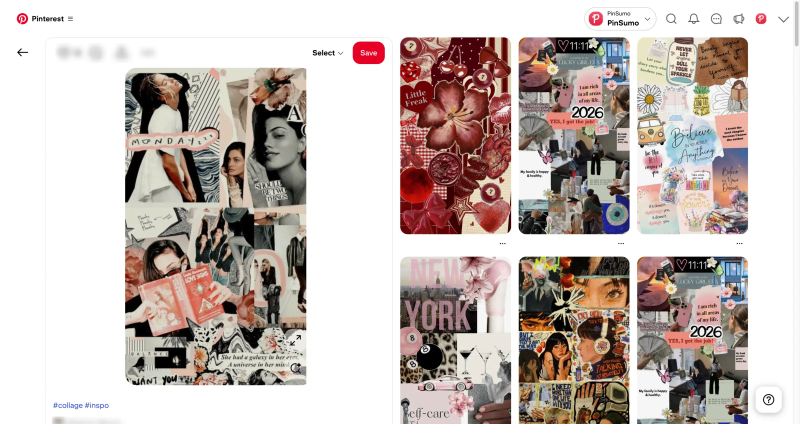
This works especially well for:
- Outfit planning
- Home decor styling
- Wishlist collections
- Travel packing ideas
- Seasonal inspiration boards
How to Make a Pinterest Collage (Mobile App)
Collages are currently designed for the Pinterest mobile experience.
Step 1: Open the Pinterest App
Log into your account using the official app.
If you do not see the collage option, make sure your app is updated from the App Store or Google Play.
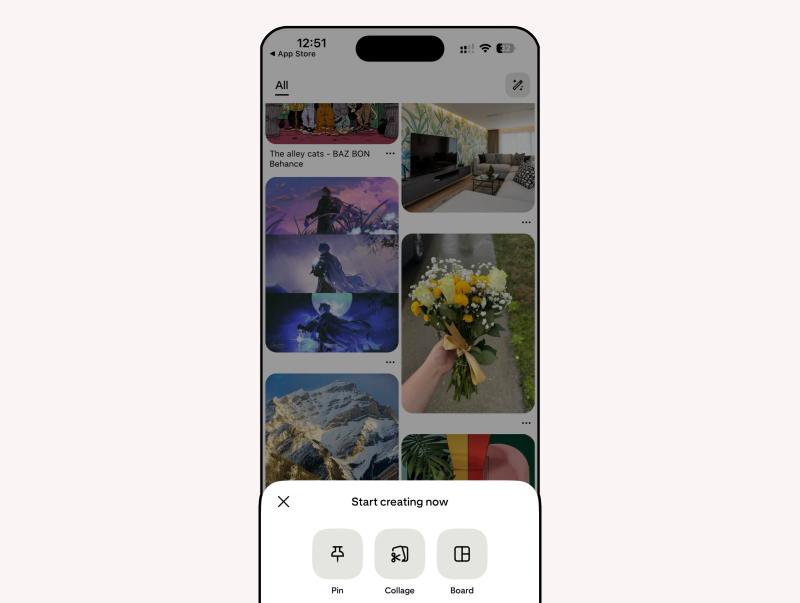
Step 2: Tap the Plus Icon
Tap the + icon at the bottom of the screen.
Select Collage from the menu options.
Step 3: Choose Your Images
You have two main options:
- Upload photos from your camera roll
- Use Pinterest’s built-in cutout tool to extract items from existing pins
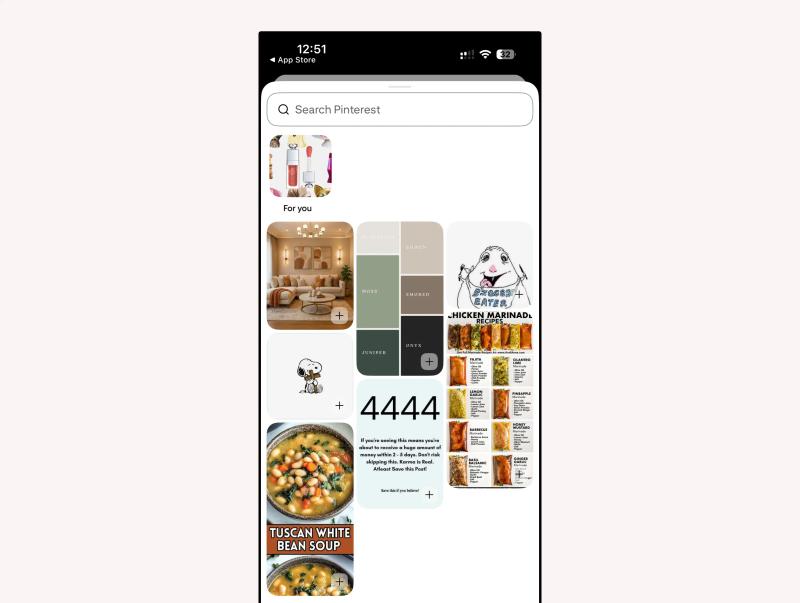
The cutout tool is especially useful for fashion, home decor, and product collections because you can isolate specific objects instead of saving full images.
Step 4: Arrange Your Layout
Once elements are added to your canvas, you can:
- Resize images
- Rotate them
- Layer objects
- Move items around
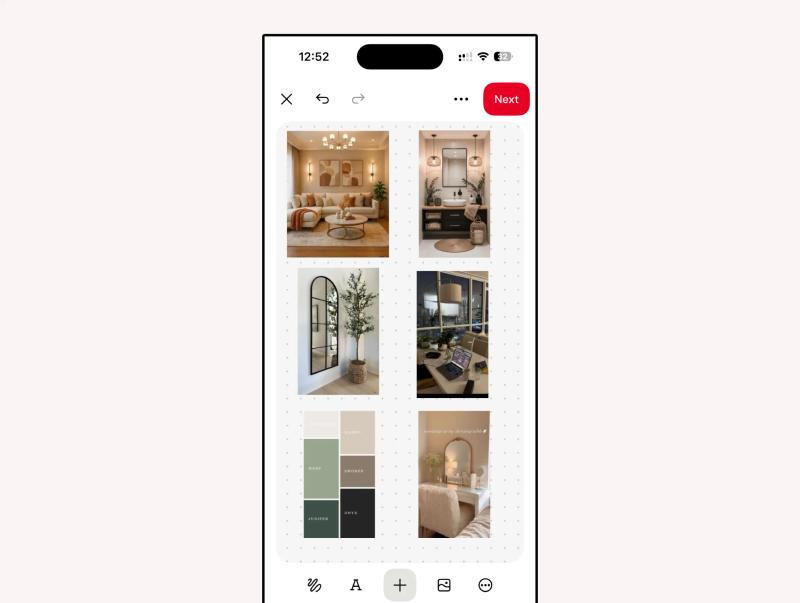
Keep spacing balanced. Avoid overcrowding.
Pinterest is a visual discovery platform, so clarity matters more than complexity.
Step 5: Add Text (Optional)
You can add short text labels to provide context.
For example:
- “Neutral Fall Outfit”
- “Small Living Room Layout”
- “Beach Travel Essentials”
Keep text short and readable.

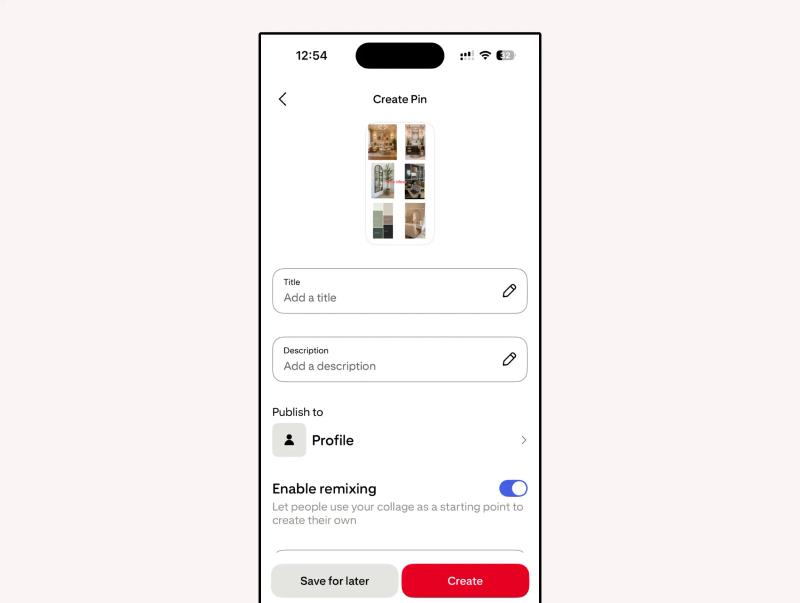
Step 6: Choose a Board and Publish
Select the board where the collage belongs.
Tap Publish, and your collage is live.
Why Collages Perform Well on Pinterest
Pinterest users often search with intent. They are planning purchases, organizing ideas, and comparing options.
Collages allow people to:
- Visualize combinations
- Compare items side by side
- Imagine products together
According to Pinterest insights shared on Pinterest Business, many users say they use the platform to plan future purchases and projects. Collages support that planning mindset.
For example:
Instead of pinning five separate outfit pieces, a collage shows how they work together.
Instead of saving different living room ideas, a collage presents a cohesive design concept.


Generate pins with AI agent on autopilot
Create, schedule, and grow your Pinterest presence effortlessly with AI-powered automation.
Try GenSumo FreeFinal Thoughts
Creating a collage on Pinterest is simple once you understand the flow.
Open the app. Choose collage. Add images. Arrange thoughtfully. Publish.
The key is not just combining images but creating a visual idea that feels intentional and useful.
Pinterest is built around discovery and planning. A well-structured collage helps people see how ideas come together.
Frequently Asked Questions
Can everyone create collages on Pinterest?
Most users can access the collage feature through the Pinterest mobile app. However, Pinterest sometimes rolls out features gradually. If you do not see the collage option, update your app to the latest version and check again.
Is the collage feature available on desktop?
The built-in collage tool is primarily available in the mobile app. On desktop, you can create a collage using external design tools and upload it as a regular pin, but it will not use Pinterest’s interactive collage format.
Can I use products from other pins in my collage?
Yes. Pinterest allows you to use the cutout tool to select and isolate items from existing pins. This is especially useful for fashion, home decor, and product comparisons.
Do Pinterest collages perform better than regular pins?
Performance depends on the topic and design. Collages can perform well because they help users visualize ideas clearly. Pinterest users often save content that helps them plan purchases or projects, and collages support that behavior.
Can I add links to a Pinterest collage?
Yes. Just like regular pins, you can add a destination URL when publishing your collage. This is helpful if you want to drive traffic to a product page, blog post, or landing page.
What size should my collage be?
Pinterest automatically formats the collage canvas inside the app. If creating a collage externally, use a vertical format such as a 2:3 ratio (for example, 1000 x 1500 pixels) for best visibility in the feed.
Can I edit a collage after publishing?
You can edit the title, description, and board placement after publishing. However, major layout edits typically require creating a new collage.
Why is my collage not getting views?
Low visibility can happen due to unclear titles, weak keywords, or posting inconsistently. Make sure your title matches what users might search for and that the collage has a focused theme.