


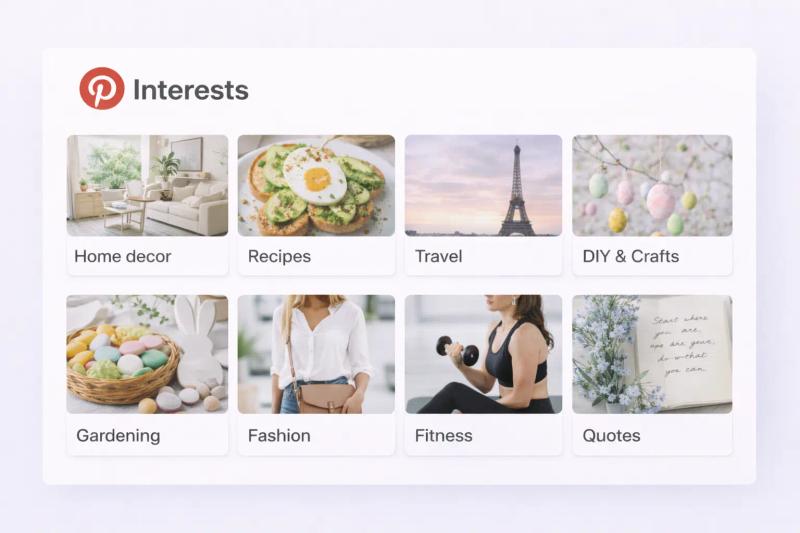
When you first join Pinterest, the platform asks about your interests. This helps shape what appears in your home feed. But even after creating your account, you can still update and refine those preferences.
If you’re wondering how to add interests on Pinterest or adjust what shows up in your feed, the process is simple.
A few small changes can make your experience feel much more relevant and personalized.
Let’s walk through it step by step.
To add or update interests on Pinterest:
- Go to your Settings
- Open Home Feed Tuner or Tune your home feed
- Select topics and interests you like
- Follow boards, creators, or topics
Pinterest uses your activity and selections to customize your feed.
What Are “Interests” on Pinterest?
Pinterest uses interests to personalize your home feed. These interests are based on:
- Topics you select
- Pins you save
- Searches you make
- Boards you follow
- Accounts you interact with
Pinterest’s recommendation system learns from your behavior over time. You can read more about how Pinterest personalizes content in their Help Center: https://help.pinterest.com/en/article/tune-your-home-feed
The more clearly you define your interests, the better your feed becomes.
How to Add Interests on Pinterest (Mobile App)
Most users manage interests through the Pinterest mobile app.
Step 1: Open the Pinterest App
Log into your account.
Step 2: Go to Your Profile
Tap your profile picture in the bottom corner.
Step 3: Open Settings
Tap the three-dot menu in the top right and select Settings.
Step 4: Select “Home Feed Tuner”
Look for Tune your home feed or Home Feed Tuner.
Here, you will see topics Pinterest believes you’re interested in.
Step 5: Adjust Your Interests
You can:
- Follow new topics
- Unfollow topics you don’t like
- Hide suggestions you don’t want to see
Pinterest will gradually adjust your feed.


Generate pins with AI agent on autopilot
Create, schedule, and grow your Pinterest presence effortlessly with AI-powered automation.
Try GenSumo FreeHow to Add Interests on Pinterest (Desktop)
If you’re using Pinterest in a browser:
- Go to Pinterest.com and log in.
- Click your profile picture.
- Open Settings.
- Navigate to feed preferences or home feed settings.
- Adjust your topics and interests.
Pinterest may update interface labels over time, but the option usually appears under account or feed preferences.
Another Way to Add Interests: Follow Topics and Boards
You don’t always need to use the settings panel.
Pinterest also learns from:
- Boards you follow
- Topics you search
- Pins you save
For example:
If you start saving pins about “minimalist home decor,” Pinterest will quickly recognize that as an interest.
If you follow boards specifically about small apartment storage ideas, your feed will show more similar content.
Your activity is one of the strongest signals.
Why Updating Interests Matters
If your home feed feels random or irrelevant, your interests may need adjusting.
Adding clear interests helps:
- Improve recommendations
- Discover more relevant content
- Reduce unrelated pins
- Improve ad targeting accuracy
Pinterest’s personalization system adapts over time, but guiding it manually speeds up the process.
How Long Does It Take for Interests to Update?
Changes are not always instant.
Pinterest’s system needs time to process your updated preferences and behavior.
Usually, you’ll notice improvements within a few days of:
- Following new topics
- Saving relevant pins
- Hiding irrelevant content
Consistency helps the algorithm understand your preferences more clearly.
Common Problems and Fixes
I Can’t Find the Interest Settings
Make sure your app is updated to the latest version. Pinterest occasionally adjusts menu layouts.
My Feed Is Still Showing Irrelevant Content
Try:
- Saving more pins in your preferred niche
- Unfollowing topics you no longer want
- Hiding unwanted pins directly from your feed
Over time, the system adapts.
Final Thoughts
Adding interests on Pinterest is less about ticking boxes and more about shaping your experience.
The more clearly you signal what you like through follows, saves, and searches, the more relevant your home feed becomes.
If your feed feels off, take a few minutes to adjust your interests and follow boards that match your goals.
Pinterest works best when it reflects what you actually care about.