



Ever searched for something on Pinterest and then watched your entire feed change because of it?
Pinterest uses your searches and activity to personalize recommendations.
That’s helpful, but sometimes you may want a reset. Whether you're trying to clear old searches or manage what Pinterest remembers, there are simple ways to take control.
In this guide, you’ll learn how to delete Pinterest history, remove recent searches, and adjust your activity settings step by step.
- You can delete individual searches directly from the search bar.
- You can clear recent searches from settings.
- Pinterest does not offer a full “delete all history” button.
- Your activity affects your home feed recommendations.
How to Delete Search History on Pinterest (Mobile App)
If you're using Pinterest on iPhone or Android, removing search history is quick and straightforward. You can either delete individual search terms or clear recent searches from your settings.
Method 1: Delete Individual Search Terms
This is the fastest way to remove specific searches.
1. Open the Pinterest app
2. Tap the Search icon at the bottom of the screen.
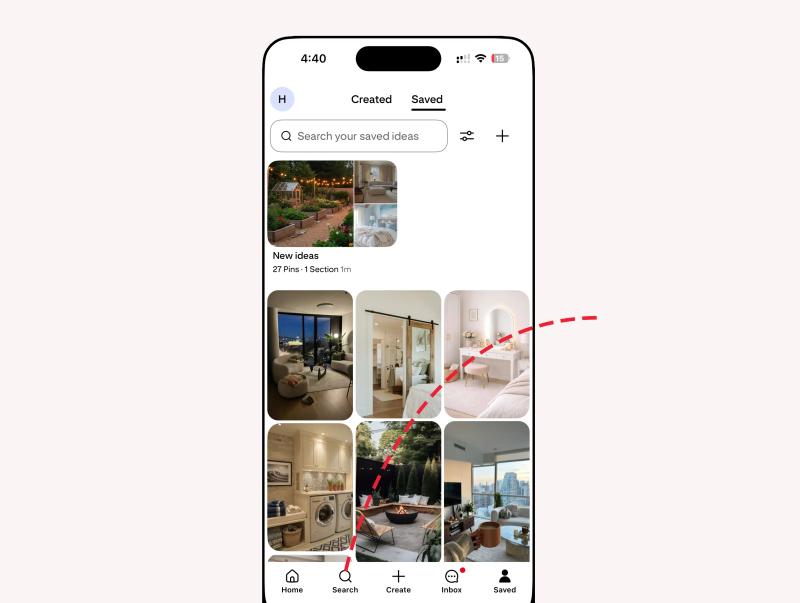
3. Tap inside the search bar at the top.
4. Your recent searches will appear in a list.
5. Tap the X icon next to it.
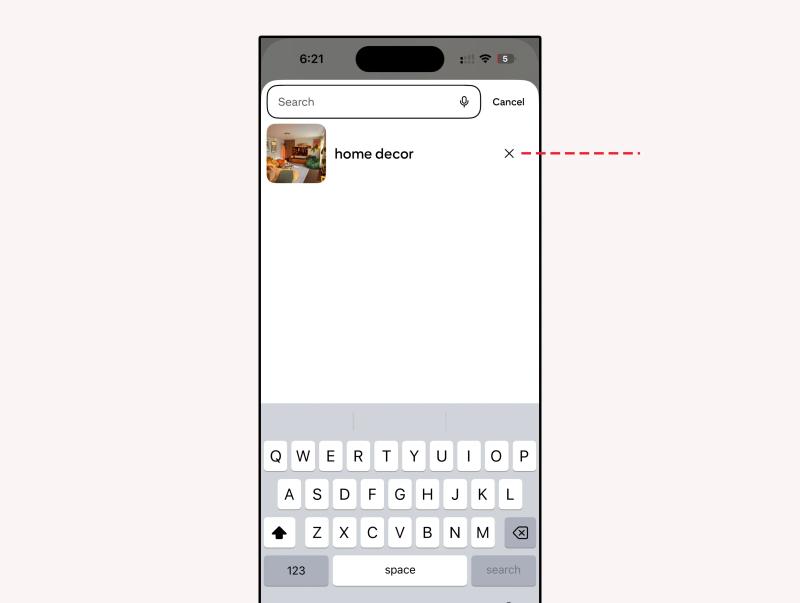
That specific keyword will disappear from your recent search history immediately.
This method is best if you only want to erase one or two searches without affecting everything else.
Method 2: Clear Recent Searches from Settings
If you want to remove all recent search suggestions at once:
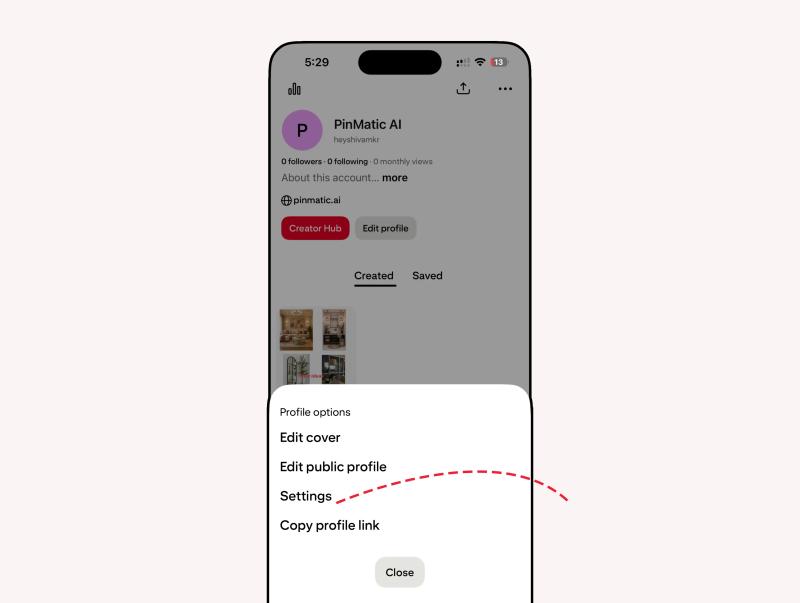
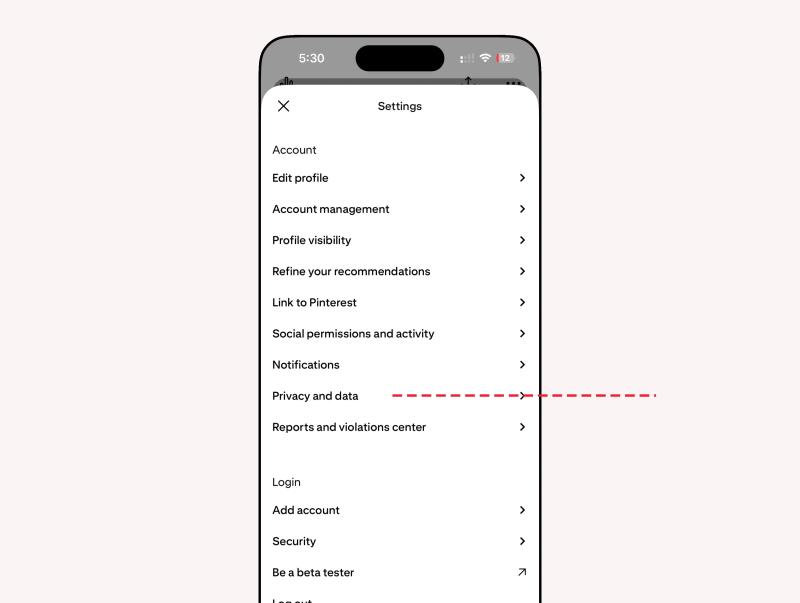
1. Go to your Profile.
2. Tap the three-dot menu in the top corner.
3. Select Settings.
4. Tap Privacy and data.
5. Find and tap “Clear cache.”
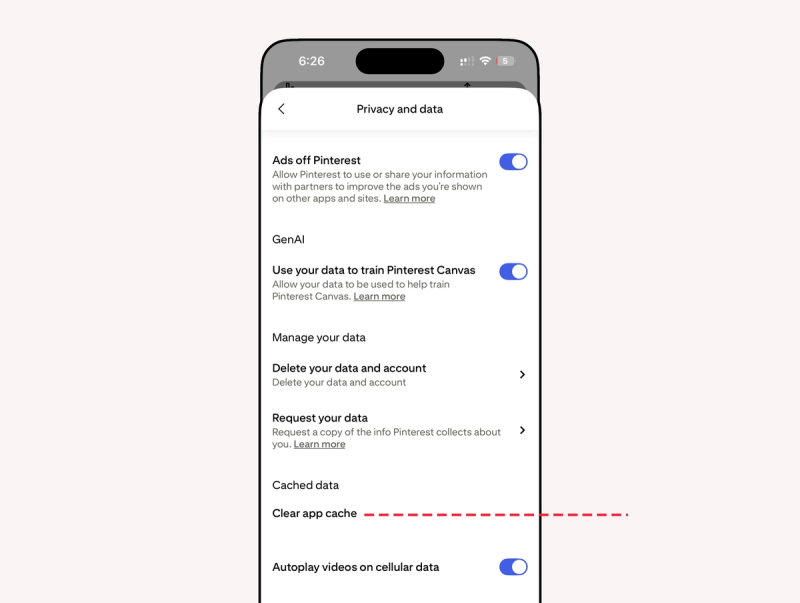
6. Confirm your action.
This removes your recent search suggestions from the search bar.
Keep in mind, this clears visible search history, but Pinterest may still use overall activity to personalize your feed.
How to Delete Search History on Pinterest (Desktop)
If you're using Pinterest in a web browser, you can remove searches directly from the search bar.
Delete Individual Searches
1. Go to Pinterest.com and log into your account.
2. Click on the "Search" icon in the top right corner.
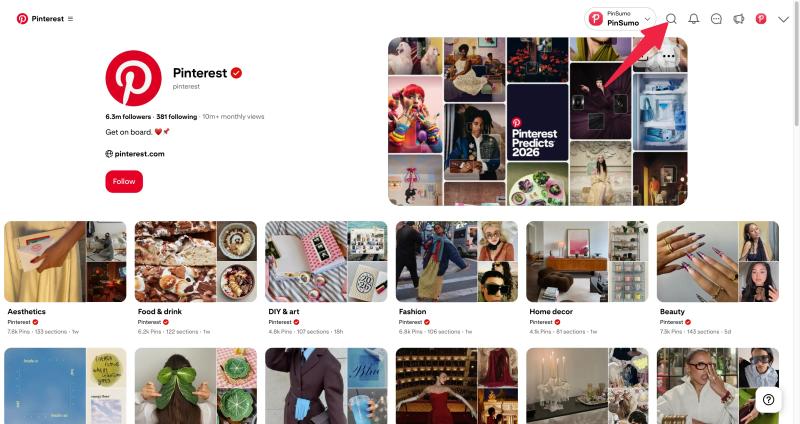
3. Your recent searches will appear in a dropdown list.
4. Click the X next to any search term to remove it.
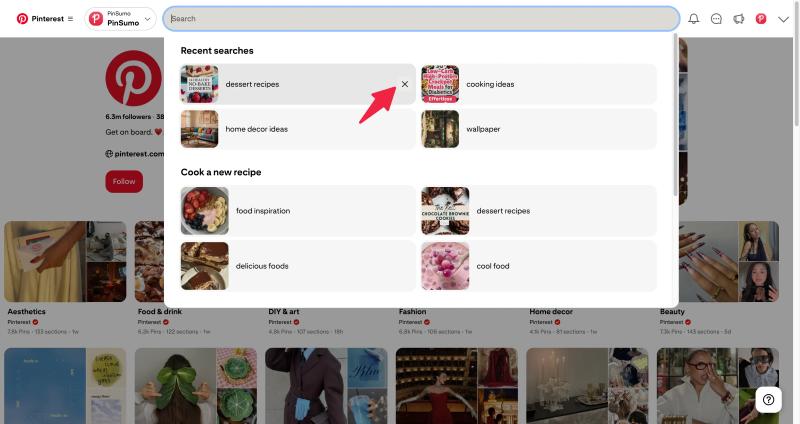
Each term must be deleted manually.
How to Erase Pinterest History That Affects Your Feed
Even after deleting searches, you might still see related content. That’s because Pinterest uses overall activity signals.
Here’s what you can do:
Turn Off Personalization Based on Activity
1. Open Settings.
2. Go to Privacy and data.
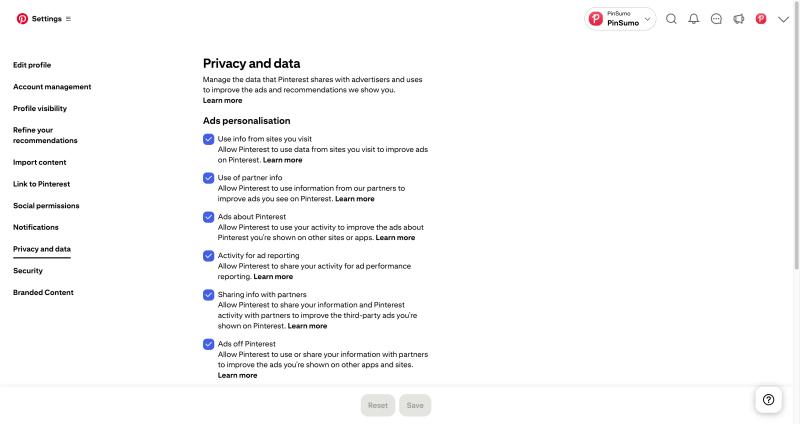
3. Adjust personalization settings.
4. Disable options related to ad personalization or activity-based recommendations if desired.
This won’t fully erase your account history, but it can reduce how much it influences your feed.


Generate pins with AI agent on autopilot
Create, schedule, and grow your Pinterest presence effortlessly with AI-powered automation.
Try GenSumo FreeFinal Thoughts
Clearing Pinterest history is simple, but it requires a few manual steps.
You can:
- Delete recent searches
- Manage personalization settings
- Remove saved pins
- Adjust boards
There is no single button to erase everything, but with a few small actions, you can reset your recommendations and keep your feed aligned with your current interests.
If you regularly research different topics for work, it’s a good habit to clear searches occasionally to keep your feed focused.
Frequently Asked Questions
How do I delete history in Pinterest completely?
Pinterest does not offer a full “delete all history” feature. You can remove searches individually and manage personalization settings.
How do I erase Pinterest search history quickly?
Open the search bar and tap the X next to each recent search. Currently, searches must be deleted one at a time.
Will deleting search history reset my Pinterest feed?
It helps, but it may not fully reset your feed immediately. Pinterest also uses saved pins and activity to personalize recommendations.
Can I turn off Pinterest tracking?
You can adjust personalization settings under Privacy and Data in account settings. This limits how Pinterest uses your activity for recommendations and ads.