


Sometimes you want to scroll, save, and plan quietly.
Maybe you are researching ideas for a new business. Maybe you are collecting inspiration for a personal goal. Or maybe you simply do not want your activity visible to everyone.
If you are wondering how to make a Pinterest account private, this guide will walk you through everything clearly.
We will cover what you can and cannot hide, how to adjust privacy settings, and how to control what others see on your profile.
You cannot make your entire Pinterest account fully private, but you can limit what others see.
Here is the quick version:
- Make boards private: Open a board → Edit board → Turn on “Keep this board secret.”
- Hide profile from Google: Go to Settings → Privacy and data → Enable “Hide profile from search engines.”
- Remove a follower: Go to Followers → Select profile → Block the user.
- Adjust personalization: Settings → Privacy and data → Review ad and activity controls.
Pinterest is built for public discovery, but with these settings, you can keep your activity much more controlled and private.
Can You Make a Pinterest Account Completely Private?
On Pinterest, personal profiles are designed to be public by default.
Unlike Instagram, Pinterest does not offer a full “private account” option where only approved followers can see your profile.
However, you can control visibility in several ways:
- Make individual boards private
- Hide your profile from search engines
- Control activity visibility
- Adjust personalization and data settings
- Remove followers manually
So while you cannot fully lock your entire account, you can significantly limit what others see.
Option 1: Make Your Complete Pinterest Profile Private
To control who can see your profile, boards, and Pins, you can switch your profile between public and private.
When your profile is set to private, it will not appear in Pinterest search results or on search engines like Google. Only people you invite will be able to follow you and view your content.
Before you get started, there are a couple of important requirements:
You must be at least 16 years old to edit your profile visibility settings. Pinterest has specific protections in place for younger users.
If you are using a business account, you will need to switch it back to a personal account before you can enable a private profile. Private profiles are only available for personal accounts.
How to Make Your Profile Private
Step 1: Log in to your Pinterest account on desktop.
Step 2: Click the more options icon in the bottom left corner of your screen.
Step 3: Select Settings from the menu.
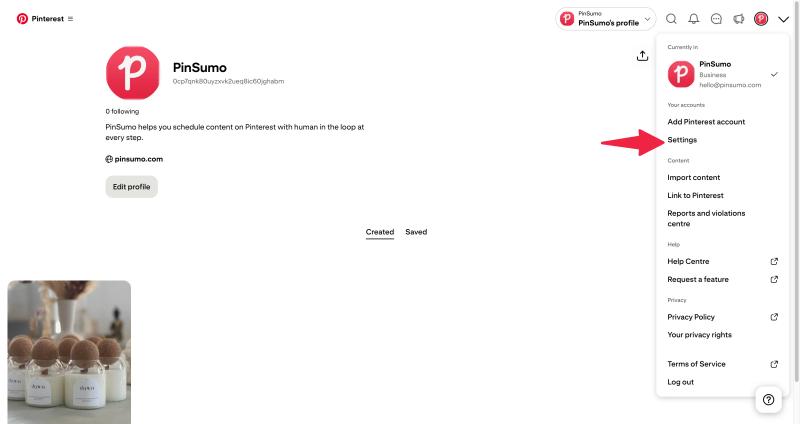
Step 4: Click Profile visibility on the left side of the settings page.
Step 5: Toggle the switch next to Private profile to turn it on.
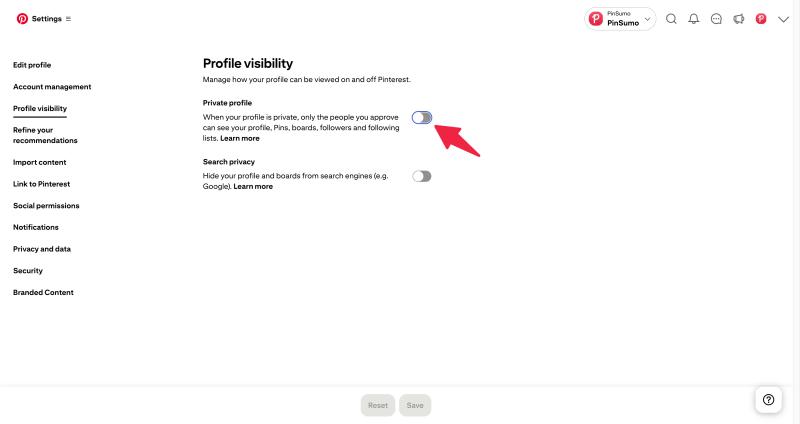
Once enabled, your profile will no longer appear in search results, and only approved followers will be able to see your content.
Option 2: Make Your Pinterest Boards Private
Another effective way to increase privacy is to make your boards secret.
When you make a board private:
- It does not appear on your public profile
- It does not show in search results
- Followers cannot see it
- Only invited people can access it
How to Make a Board Private (Mobile)
Step 1: Open the Pinterest app on your mobile device and make sure you are logged into your account.
Step 2: Tap your profile picture at the bottom of the screen to go to your profile.
Step 3: Select the board you want to hide from your public profile.
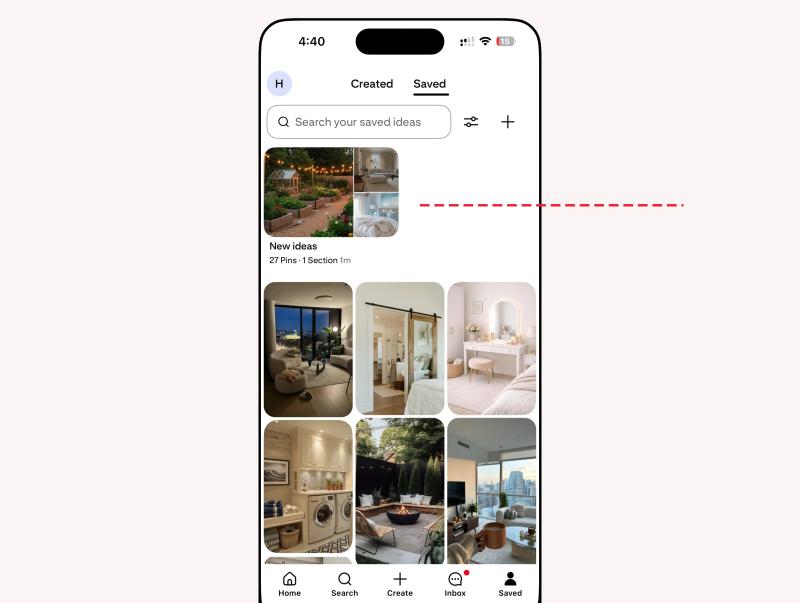
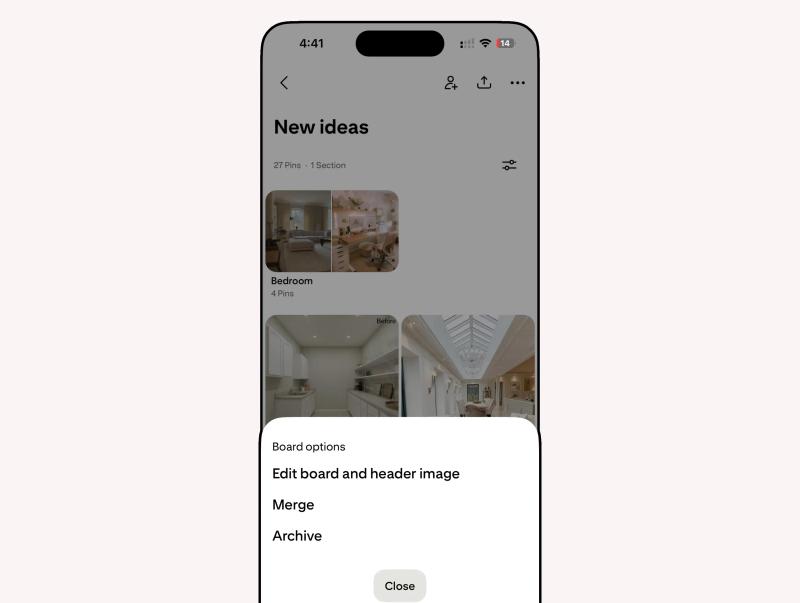
Step 4: Tap the three dot menu in the top corner of the board.
Step 5: Choose Edit board from the available options.
Step 6: Turn on the Keep this board secret option to make the board private.
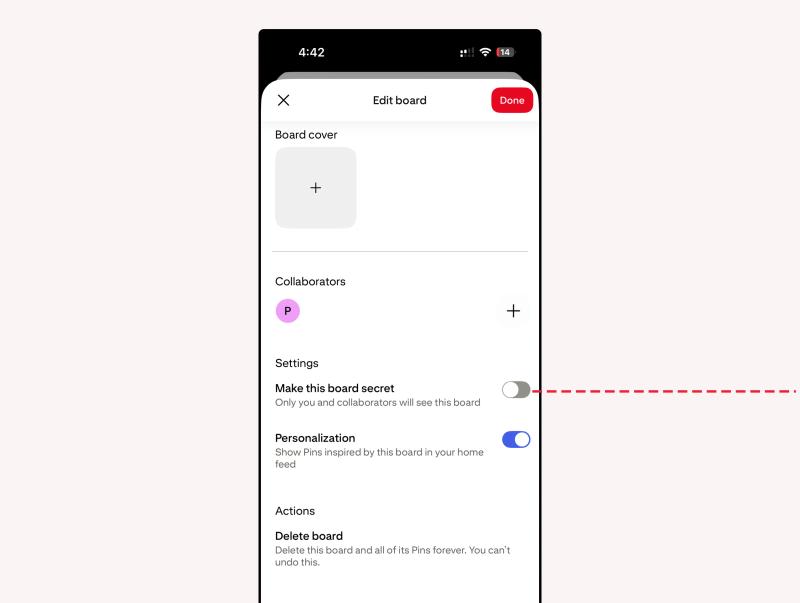
Step 7: Tap Save to apply your changes.
How to Make a Board Private (Desktop)
Step 1: Go to Pinterest.com in your browser and log in to your account.
Step 2: Click your profile picture in the top-right corner to open your profile.
Step 3: Select the board you want to make private.
Step 4: Click the three dot menu on the board page to open board settings.
Step 5: Choose Edit board from the dropdown options.
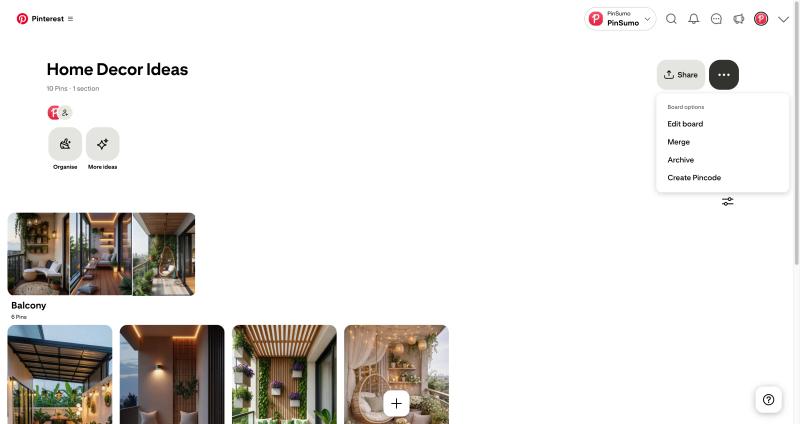
Step 6: Toggle on the Keep this board secret option to make the board private.
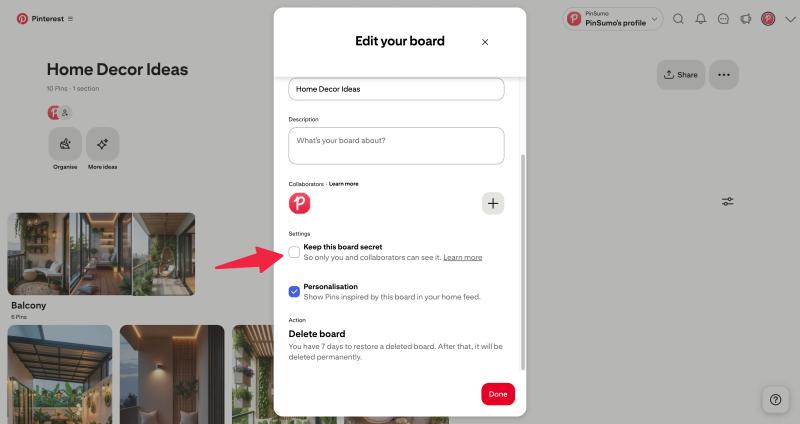
Step 7: Click Done to save your changes.
You can create new private boards the same way by enabling the secret option during setup.
Option 3: Hide Your Pinterest Profile From Search Engines
Even though Pinterest profiles are public, you can reduce visibility on Google and other search engines.
This does not make your account private inside Pinterest, but it prevents your profile from appearing in external search results.
Step 1: Open Pinterest and go to your account Settings from your profile menu.
Step 2: Navigate to the Profile visibility tab inside Settings.
Step 3: Toggle the switch next to Search privacy to enable it.
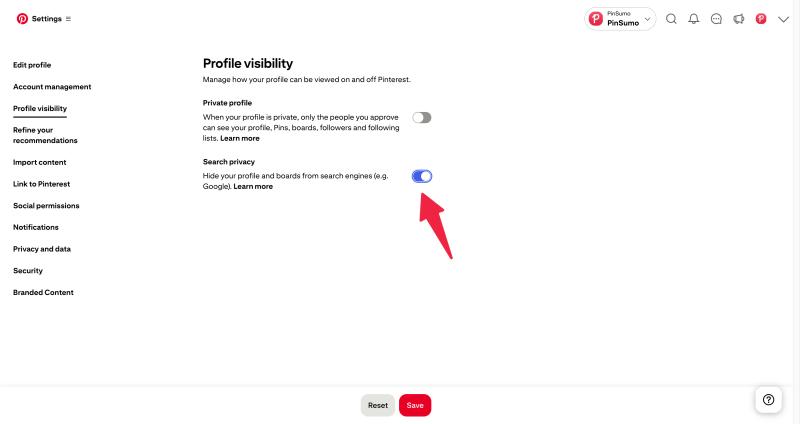
Step 4: Click I understand to confirm your choice.
Step 5: Click Save to apply the changes.
Once enabled, search engines will stop indexing your profile. It may take time for changes to reflect in search results.
Option 5: Control Who Follows You
Pinterest does not require approval for followers. Anyone can follow your public profile.
However, you can remove followers manually.
How to Remove a Follower
- Go to your profile.
- Tap on Followers.
- Select the follower you want to remove.
- Block their account.
Blocking removes them as a follower and prevents them from interacting with your content.
This is helpful if you want to limit specific individuals.
Option 5: Adjust Activity and Personalization Settings
Pinterest uses your activity to personalize your home feed and ads.
If you are concerned about privacy, you can adjust some of these settings.
To Review Privacy Settings
- Go to Settings.
- Tap Privacy and data.
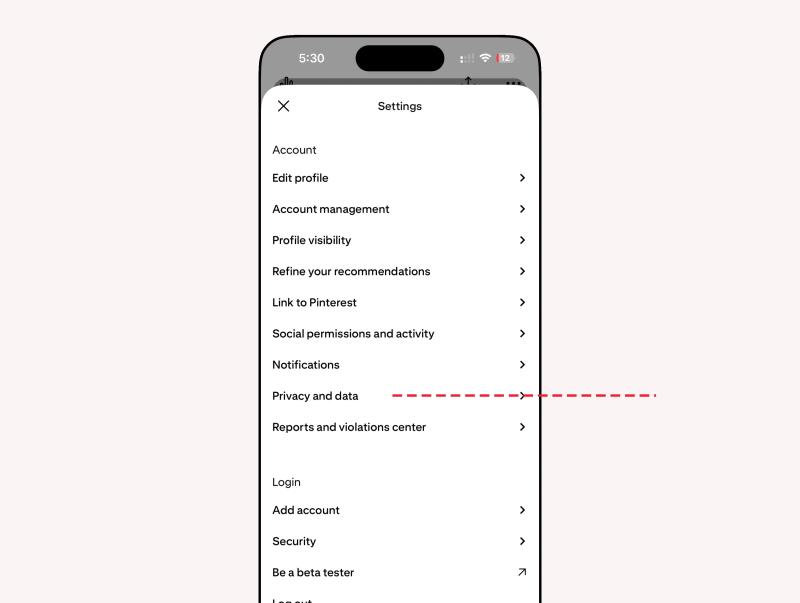
3. Review personalization options.
4. Adjust ad personalization if desired.
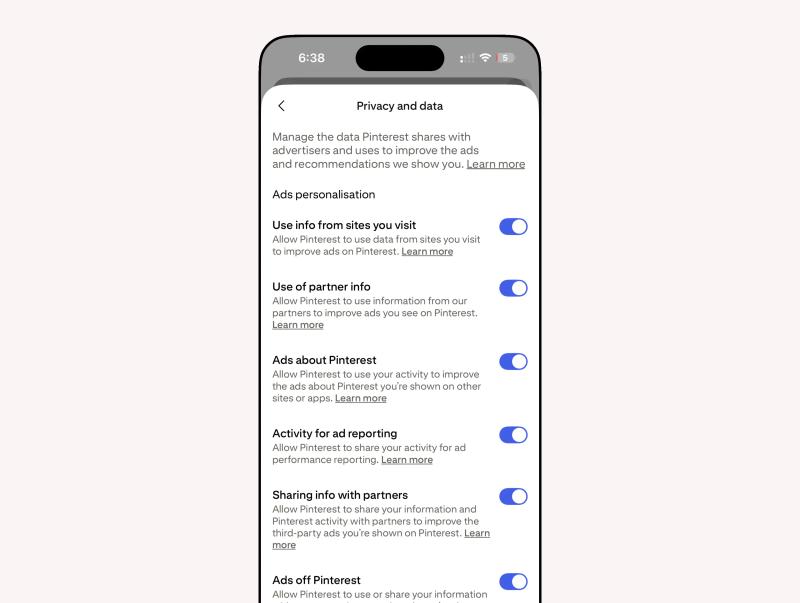
This does not hide your profile, but it gives you more control over how your data is used.


Generate pins with AI agent on autopilot
Create, schedule, and grow your Pinterest presence effortlessly with AI-powered automation.
Try GenSumo FreeWhat People Can Still See
Even if you adjust settings, remember that public boards and pins remain visible to others.
Anyone can:
- View your public boards
- See your public pins
- Follow your account
- Find your profile through Pinterest search
Pinterest is built around sharing and discovery. It is not structured like private messaging platforms.
Read more: Whether people can see when you view their Pinterest profile.
Final Thoughts
You cannot make your entire Pinterest account completely private.
But you can control what others see.
By using private boards, adjusting search visibility, and managing followers, you can create a more personal and controlled experience on Pinterest.
The platform is built for discovery and sharing, so privacy works at the board level rather than the account level.
If privacy matters to you, start by reviewing your boards. That is where the biggest visibility changes happen.
Frequently Asked Questions
How do I hide my Pinterest profile from Google?
You can hide your profile from search engines by going to Settings, then Privacy and data, and turning on the option to hide your profile from search engines. It may take some time for search engines to update and remove your profile from results.
If I make a board private, can followers still see it?
No. Once you turn on the Keep this board secret option, the board disappears from your public profile and cannot be seen by followers unless you invite them.
Will people be notified if I make my board private?
No. Pinterest does not notify followers when you change a board from public to private. It simply becomes hidden.
Can I approve followers on Pinterest?
No. Pinterest does not have a follower approval system. Anyone can follow your public account. If you do not want someone following you, you can block them.
Does blocking someone make my account private?
Blocking removes that person’s access to your profile and prevents them from interacting with your content. However, it does not make your entire account private to everyone else.
Can I make only certain pins private instead of the whole board?
No. Privacy settings apply to entire boards. If you want specific pins to stay private, you need to move them to a private board.
Do private boards affect my recommendations?
Yes. Even though a board is private, the pins you save to it still influence your home feed and recommendations because Pinterest uses your activity to personalize content.