


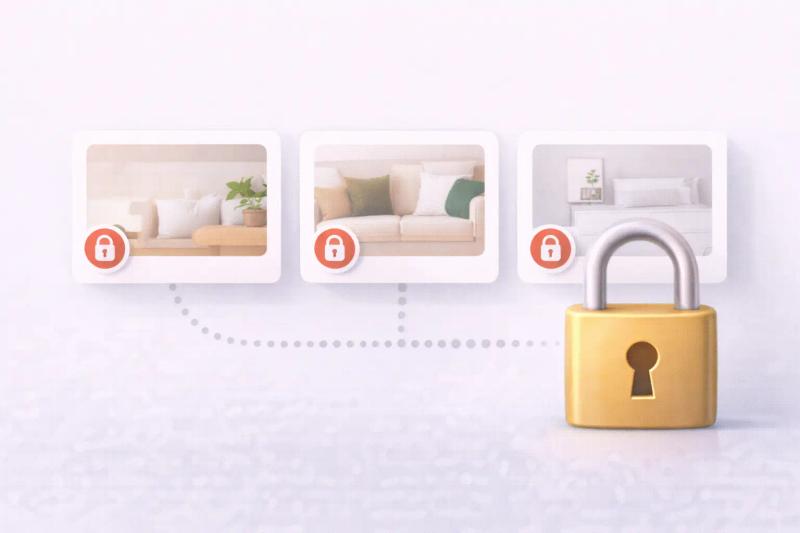
Sometimes Pinterest isn’t about sharing. It’s about planning quietly.
Whether you’re organizing a surprise, saving personal ideas, or researching competitors, private boards let you keep things hidden. They don’t appear on your profile or in search, and only invited people can see them.
In this guide, you’ll learn how to create a private board on Pinterest, turn an existing board secret, and switch it back to public anytime.
- You can make a board private when creating it by turning on “Keep this board secret.”
- You can also edit any existing board and switch it to private.
- Private boards are hidden from your profile and search results.
- Followers are not notified when you make a board secret.
What Is a Private Board on Pinterest?
A private board, sometimes called a secret board, is simply a board that is hidden from everyone except you and anyone you invite.
It still works like a normal board. You can:
- Save pins
- Organize sections
- Add collaborators
- Move pins in and out
The only difference is visibility.
If someone visits your profile, they won’t see it. If they search on Pinterest, it won’t appear. It stays completely out of public view.
This makes it perfect for planning, early-stage ideas, or personal inspiration you’re not ready to share.
How to Make a Private Board on Pinterest (Mobile App)
If you’re using the Pinterest app on iPhone or Android, creating a private board takes less than a minute. You can make it secret right from the start.
Follow these steps:
1. Open the Pinterest app on your phone.
2. Tap your profile icon at the bottom right.
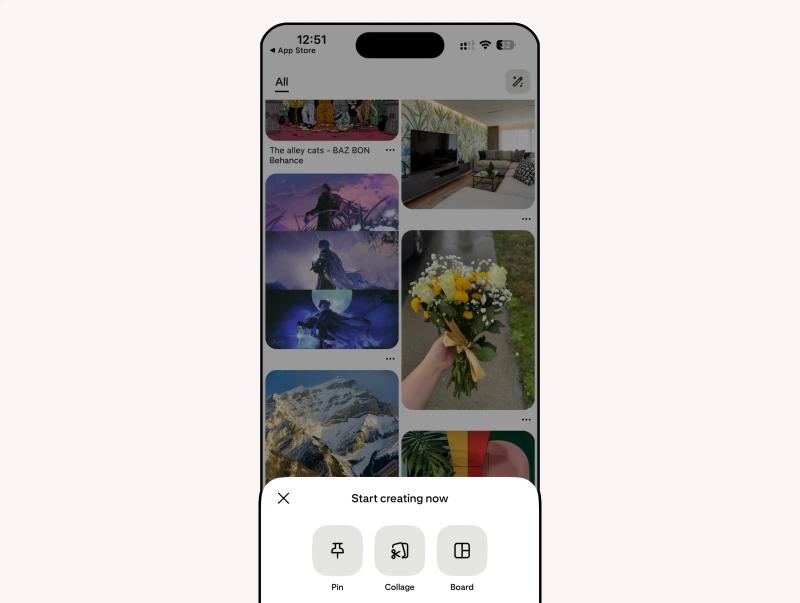
3. Tap the plus (+) button.
4. Select “Board.”
5. Enter a name for your board.
6. Turn on the toggle that says “Keep this board secret.”
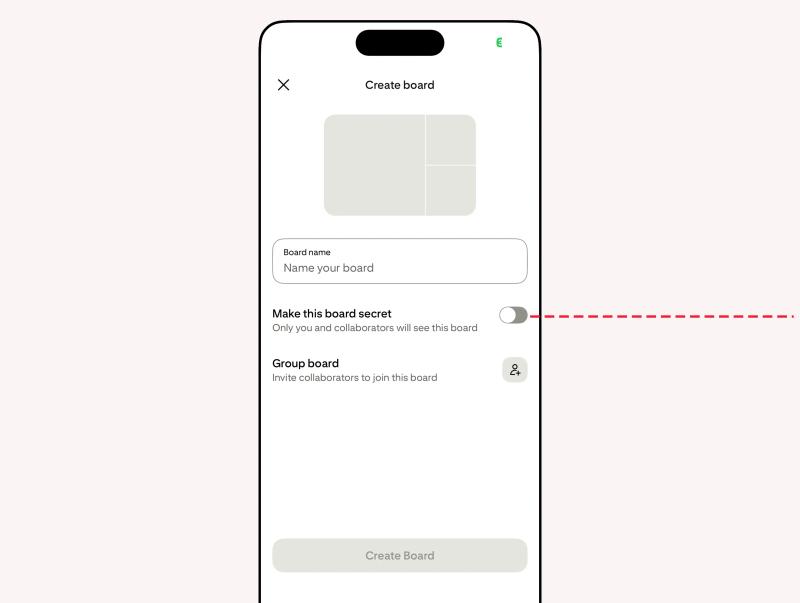
7. Tap “Create.”
That’s it. Your board is now private.
How to Make an Existing Board Private (Mobile)
If you already have a board and want to hide it from your profile, you don’t need to create a new one. You can switch it to private in just a few steps.
Here’s how:
1. Open the Pinterest app.
2. Go to your profile.
3. Tap the board you want to make private.
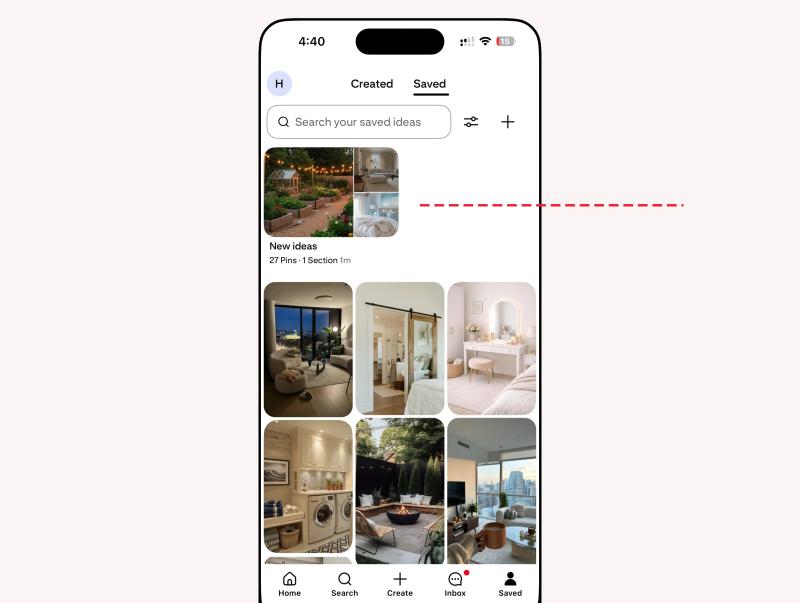
4. Tap the three-dot menu in the top corner.
5. Select “Edit board.”
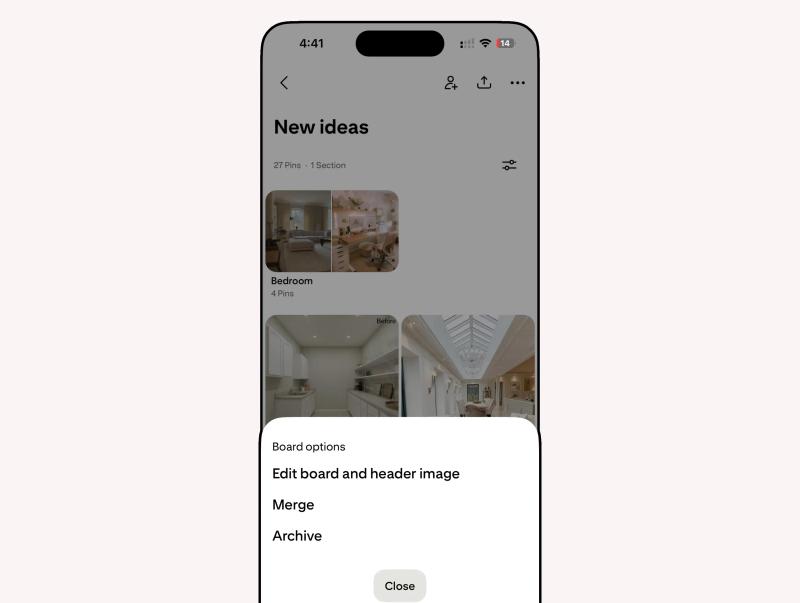
6. Turn on the toggle that says “Keep this board secret.”
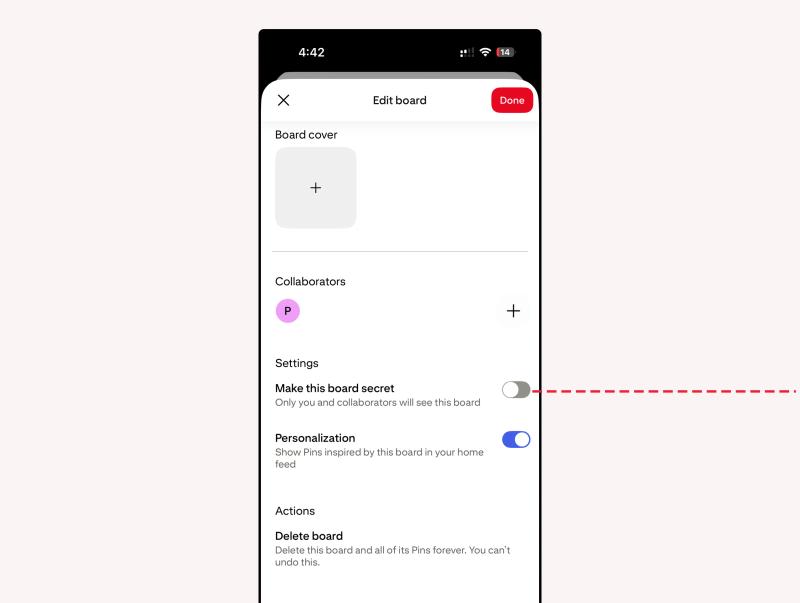
7. Tap “Done” or “Save.”
As soon as you save the change, the board becomes private.
It will disappear from your public profile and won’t show up in search results. Your followers won’t be notified about the change.
How to Create a Private Board on Pinterest (Desktop)
If you’re using Pinterest in a web browser, creating a private board is just as simple as on mobile. You can make the board secret while setting it up.
Follow these steps:
1. Go to Pinterest.com and log into your account.
2. Click your profile picture in the top right corner.
3. Click the plus (+) button.
4. Select “Create board.”
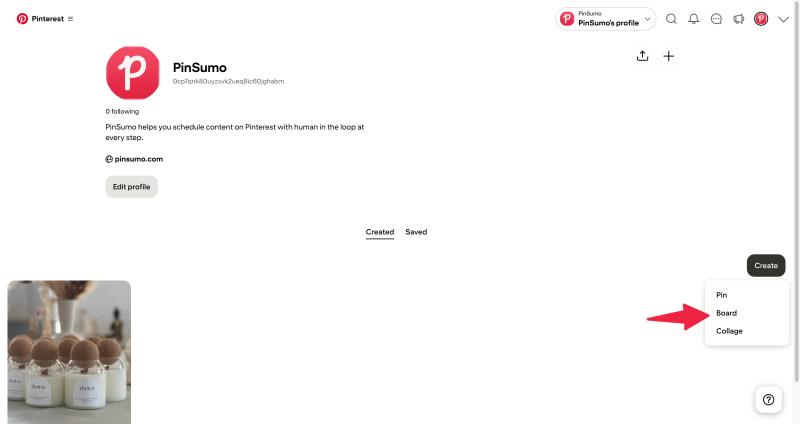
5. Enter a name for your board.
6. Check the box that says “Keep this board secret.”
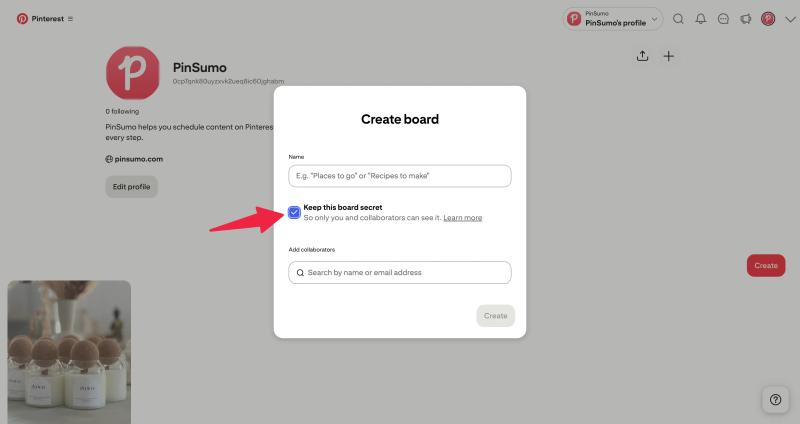
7. Click “Create.”
Your new board is now private.
How to Make an Existing Board Private (Desktop)
If you already have a board on Pinterest and want to hide it from your public profile, you can switch it to private in just a few clicks.
Follow these steps:
1. Go to Pinterest.com and log into your account.
2. Click your profile picture in the top right corner.
3. Open the board you want to make private.
4. Click the three-dot menu on the board page.
5. Select “Edit board.”
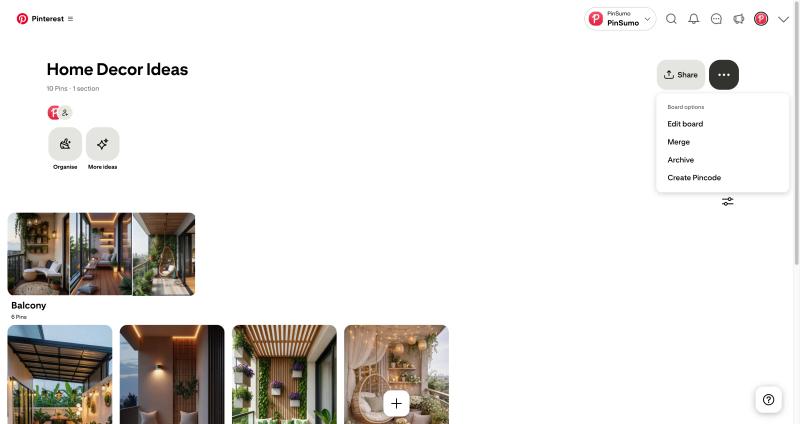
6. Turn on the option that says “Keep this board secret.”
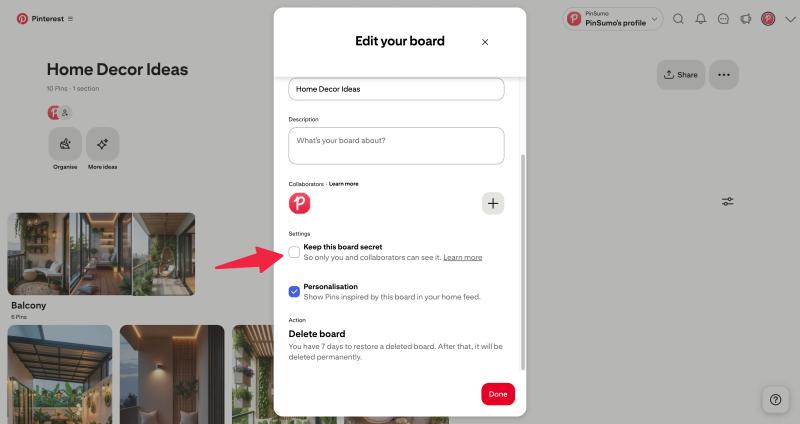
7. Click “Done” to save your changes.
As soon as you save, the board becomes private.
Final Thoughts
Pinterest is often seen as a public inspiration platform, but private boards give you control over what you share and when you share it.
Whether you’re planning something personal or working on a business strategy, knowing how to make a private board on Pinterest gives you flexibility. You can think, plan, and experiment quietly — and make things public only when you’re ready.
It’s a simple feature, but once you start using it intentionally, it becomes one of the most powerful tools on the platform.
Frequently Asked Questions (FAQs)


Generate pins with AI agent on autopilot
Create, schedule, and grow your Pinterest presence effortlessly with AI-powered automation.
Try GenSumo FreeCan followers see my private boards on Pinterest?
No. Private boards are completely hidden from your followers. They do not appear on your public profile and won’t show up in search results. The only people who can see a private board are the ones you invite.
Will my followers get notified if I make a board private?
No. Pinterest does not send notifications when you switch a board from public to private. It simply disappears from your profile.
Can I invite someone to a private board?
Yes. You can invite specific people to collaborate on a private board. Once they accept the invitation, they can view and save pins to that board. It will still remain hidden from everyone else.
Can I make a secret board public again?
Yes. You can switch a private board back to public anytime. Just go to Edit board and turn off the “Keep this board secret” option. Once public, the board will appear on your profile and may show in search results.
Are private boards really private?
Private boards are hidden from public view, search results, and your followers. However, anyone you invite as a collaborator will be able to see the content. Always double-check collaborator access if privacy is important.
Do private boards affect my Pinterest recommendations?
Yes, they can. Even though a board is private, the pins you save to it still influence your home feed and recommendations because Pinterest uses your activity to personalize content.
Is there a limit to how many private boards I can create?
Pinterest does not publicly state a strict limit for most users. In general, you can create multiple private boards without issue, but extremely high activity may be subject to platform limits.
Can I make only certain pins inside a board private?
No. Privacy settings apply to the entire board. If you want specific pins to stay private, you’ll need to move them to a separate private board.