


You open Pinterest and… nothing.
Maybe the homepage won’t load. Maybe images are stuck blank. Maybe you see an error page. Or maybe Pinterest works on your phone but not on your computer.
If you’re asking:
- Why isn’t Pinterest loading?
- Why won’t Pinterest load on my computer?
- Why won’t Pinterest load on Chrome?
This guide walks through the real causes and practical fixes step by step.
Pinterest usually fails to load because of:
- Internet connection issues
- Browser cache problems
- Chrome extensions blocking scripts
- Outdated browser version
- Temporary Pinterest server outage
Most issues are fixed by clearing cache, disabling extensions, or updating Chrome.
1. Check If Pinterest Is Down
Before troubleshooting your device, check whether Pinterest itself is having issues.
Visit:
- Downdetector – Pinterest Status
- Or Pinterest’s official Status Page
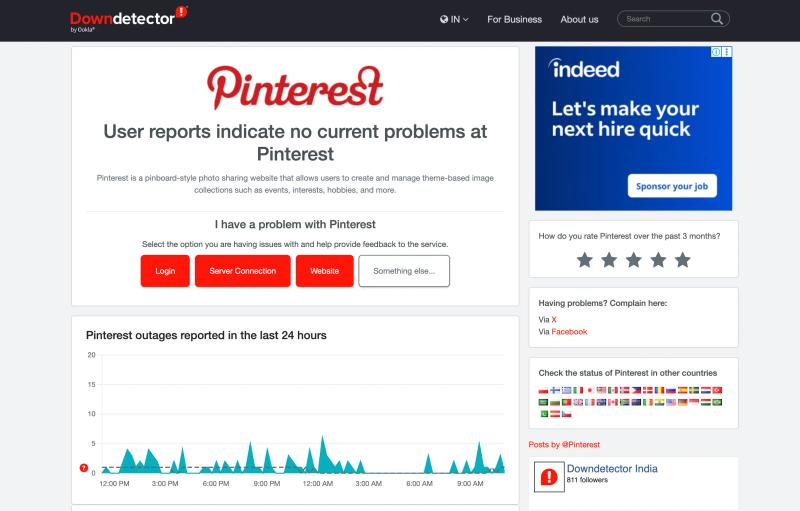
If many users are reporting problems, the issue may be temporary. In that case, waiting 10–30 minutes often resolves it.
2. Check Your Internet Connection
Sometimes the problem is simpler than it seems.
Try:
- Opening another website
- Restarting your WiFi router
- Switching from WiFi to mobile hotspot
Pinterest loads many images and scripts. A slow or unstable connection can cause partial loading where text appears but images do not.
3. Why Won’t Pinterest Load on Chrome?
Google Chrome is the most common browser used for Pinterest. If Pinterest won’t load specifically on Chrome, try these fixes.
Clear Browser Cache and Cookies
Old cached files can prevent Pinterest from loading properly.
How to clear cache in Chrome:
Open Chrome.
- Click the three dots in the top right corner.
- Go to Settings.
- Click Privacy and security.
- Select Clear browsing data.
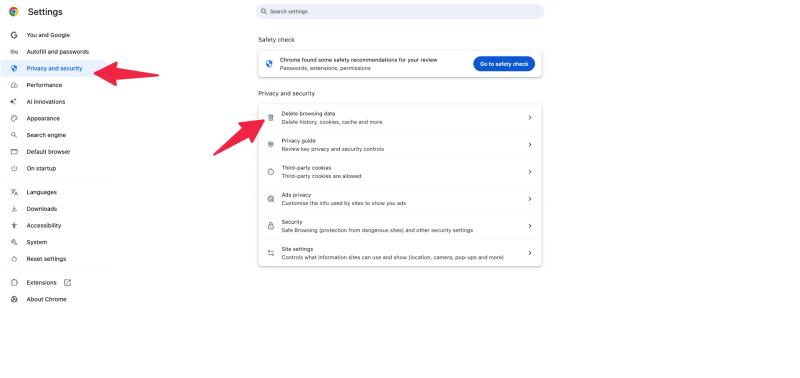
5. Choose “Cached images and files.”
6. Click Clear data.
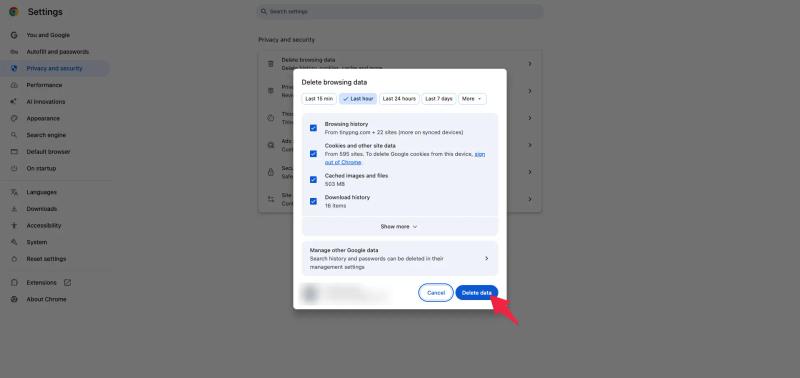
Restart Chrome and try loading Pinterest again.
Disable Browser Extensions
Some extensions block scripts or ads, which can interfere with Pinterest loading.
Common culprits:
- Ad blockers
- Script blockers
- Privacy extensions
To test:
- Type
chrome://extensions/in the address bar. - Disable all extensions temporarily.
- Restart Chrome.
- Try loading Pinterest again.
If it works, re-enable extensions one by one to identify the issue.
Update Chrome
Outdated versions of Chrome can cause compatibility issues.
To update:
- Click the three dots in Chrome.
- Go to Help → About Google Chrome.
- Chrome will automatically check for updates.
Install updates and relaunch.
4. Why Won’t Pinterest Load on My Computer?
If Pinterest does not load on any browser on your computer, consider these additional checks.


Generate pins with AI agent on autopilot
Create, schedule, and grow your Pinterest presence effortlessly with AI-powered automation.
Try GenSumo FreeDisable Firewall or Antivirus Temporarily
Some antivirus software blocks certain website scripts.
Temporarily disable your firewall or antivirus and try loading Pinterest.
If it works, you may need to whitelist Pinterest in your security settings.
Flush DNS Cache
Sometimes DNS issues prevent websites from loading.
On Windows:
- Open Command Prompt.
- Type:
ipconfig /flushdns - Press Enter.
On Mac:
- Open Terminal.
- Type:
sudo dscacheutil -flushcache - Press Enter.
Then try reloading Pinterest.
5. Pinterest App Not Loading?
If you’re using the mobile app:
- Force close the app
- Clear app cache (Android settings → Apps → Pinterest → Storage → Clear cache)
- Update the app from the App Store or Google Play
- Reinstall the app if needed
Make sure you are running the latest version.
6. Check JavaScript and Cookies
Pinterest requires JavaScript and cookies to function.
In Chrome:
- Go to Settings
- Click Privacy and security
- Make sure JavaScript is allowed
- Ensure cookies are not blocked
Blocking cookies can prevent login and feed loading.
7. Try Incognito Mode
Open Chrome in Incognito mode and visit Pinterest.
If Pinterest loads normally there, the issue is likely:
- Browser extensions
- Cached data
- Cookie conflicts
This is a quick way to isolate the problem.
8. Clear DNS or Change DNS Server
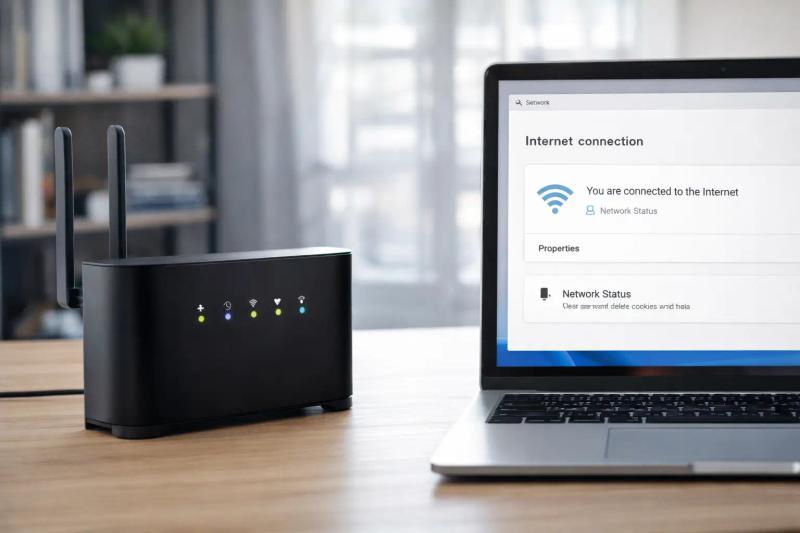
If Pinterest loads on mobile but not your computer, it may be a DNS issue.
You can try switching to:
- Google DNS (8.8.8.8 and 8.8.4.4)
Changing DNS settings sometimes resolves loading errors.
9. Account Specific Issue
If Pinterest loads but your account does not display properly:
- Log out and log back in
- Reset your password
- Check email for any account restriction notices
Pinterest sometimes restricts accounts due to unusual activity.
Final Thoughts
When Pinterest isn’t loading, the issue is usually technical, not permanent.
Start with:
- Checking server status
- Restarting your connection
- Clearing Chrome cache
- Disabling extensions
- Updating your browser
Most Pinterest loading issues are resolved within minutes using these steps.
If nothing works, try accessing Pinterest from a different device. That helps determine whether the issue is device specific or account related.